.png?width=300&height=76&name=logo%20H%20teal%20(1).png)
Arranging and grouping ticket types
You can arrange and group your various ticket types by using the Groups tab in your event page. This can be a very useful feature if you have lots of different ticket types, and if you want to display a certain ticket type above the others. You may, for example, wish to have an "Ordinary Adult Ticket" above any concession tickets, or a "VIP Pass" above an ordinary ticket.
If you have a seat map, then you will use the Price Zones tab instead of Groups. Price zones work similarly to groups, and they will connect up different areas of the seat map with different ticket types.
Arranging ticket types
First, go to Groups and then click and drag your ticket types into the relevant order by using the line-symbol on the left of each ticket type.
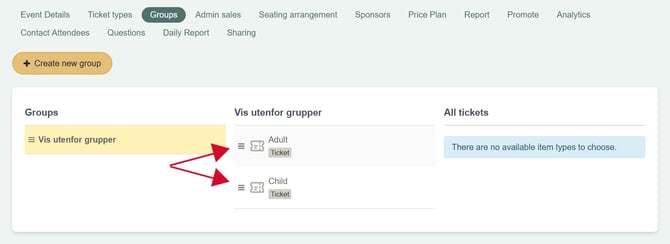
When you move a ticket type, it will automatically be updated on the published event.
Grouping ticket types
You may wish to group certain tickets together e.g. if you are selling tickets for slightly different days on the same event. To do this, click on Create new group and then add a name for the group. The name will be visible on the event page, so you might call this e.g. "Friday tickets" or "VIP packages".
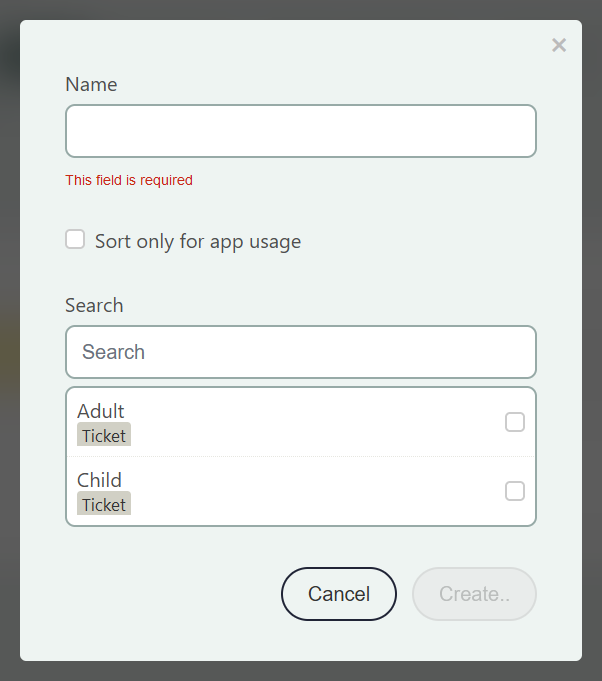
If you tick the Sort only for app usage button, then these groups will only appear in the TicketCo Admin app for when you are selling tickets on the door. This will help your staff easily navigate to the correct ticket types when they may have a list of many.
Select which ticket types you want to be included within the group you have set up, and hit Create.
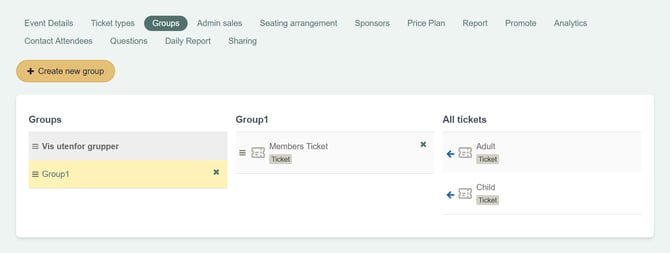
You can add other tickets to the group later on, by selecting the relevant group on the right hand side. The items currently in the group will be displayed in the central column, and you can click on the blue arrow under All tickets to add items to the group. To remove items, click the small blue cross.
You can also arrange your groups in the same way as described above - click and drag the groups so that they appear in the correct order, and this will automatically update.
You can choose to show some ticket types outside of the groups by adding them to the Show outside groups category. You can equally remove any tickets from showing outside of any group by using the small blue cross.
Preview
It is worth checking how the groups are displayed on your event page by navigating back to Event Details and selecting Preview.