.png?width=300&height=76&name=logo%20H%20teal%20(1).png)
Connecting the Zettle card reader to an iOS device
If you have an iOS device with the TicketCo app installed, you will be able to use a Zettle card reader (formerly known as iZettle) to accept card payments over the counter. This article outlines how to connect your Zettle card reader to your iOS device. You can source a Zettle card reader on many shopping sites, such as eBay, or directly from Zettle.
⚠️ Please note that you will log into the Zettle terminal via our TicketCo admin app, so you should not download any Zettle software or sign up to Zettle directly.
Jump ahead to:
- Important information before you get started
- How to connect a Zettle Reader 2
- How to connect an iZettle Reader 1 / iZettle Reader Contactless / iZettle Reader Pro
Important information
You can use any of the readers listed below, and they will work in the same way. The only difference is that the Zettle Reader 2 requires a different method of pairing. You will need to follow this pairing process for each iOS device and Zettle reader (each reader requires a separate iOS device). You only need to do this the first time you connect a reader to your device.
During the pairing process described below you will be asked to enter a Zettle username and password. If you are using multiple Zettle terminals and iOS devices, the same password and username will be used for all devices. As previously mentioned, you cannot use your own private Zettle account within the TicketCo app - you must use the credentials we have provided you.
You may not use the TicketCo Zettle username and password to log in to the Zettle app to sell. Doing this will lead to complications in accounting for your sales, and amongst other things can cause a substantial delay in payouts as well as possible additional fees.
Zettle Reader 2
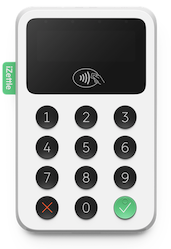
1) Turn on the Zettle Reader 2
The power button is located at the top of the terminal. You may need to charge the terminal if it is brand new.
2) Open the TicketCo Admin app settings
Open the TicketCo Admin app, tap Settings and select Payment terminal settings.
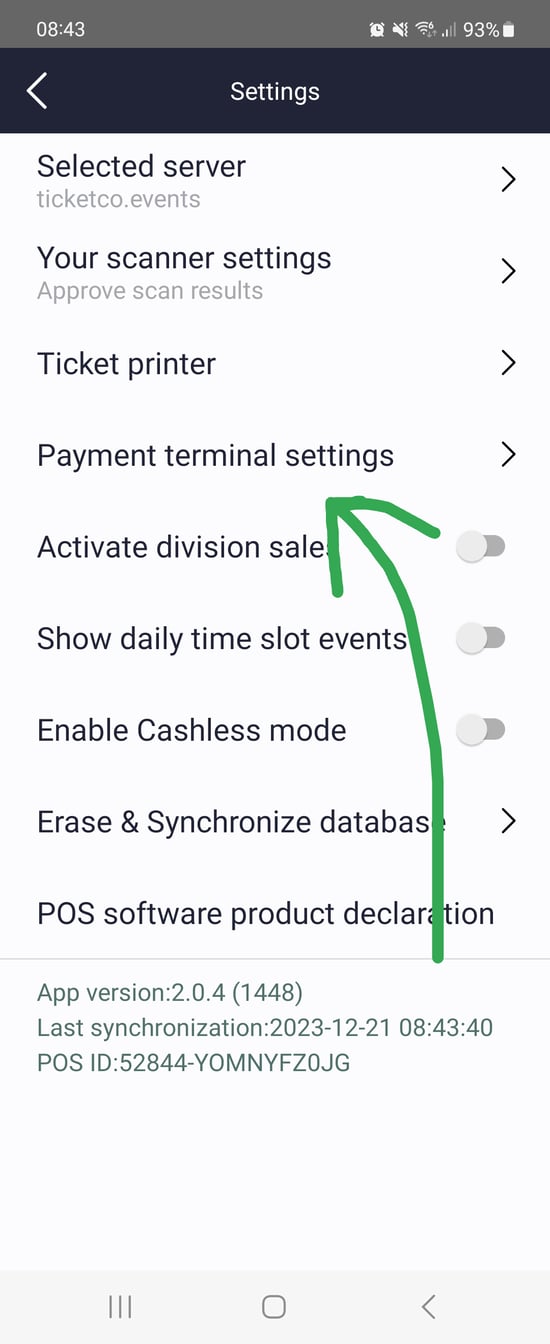
3) Activate Zettle sales
Note down the password and username listed under iZettle settings. Your username will be in the format of izettle+xxxx@ticketco.net (or similar), and your password will contain a mixture of letters and numbers.
It is very important that you log in with these credentials, so note them down. If you enter incorrect details more than 3 times you will be locked out, and TicketCo will need to provide you with a new password.
Tap iZettle settings, enter the details you noted down and tap Log in.
4) Pair the Zettle reader
In the App select Card readers and then Connect card reader, select iZettle Reader 2 and wait for your Zettle reader to show up under “#DETECTEDCARDREADERS”. Tap it to connect.
Confirm the pairing by tapping “CONFIRM” on your device and then the (green) tick button on the Zettle reader. Once connected your card reader should show “Insert card”. After pairing the Zettle Reader 2 you’ll be redirected to the iZettle settings screen in the app. Once you get to this point simply tap Close in the top left corner to go back to the TicketCo App main screen. For help on how you can start selling, head this way.
iZettle Reader 1 / iZettle Reader Contactless / iZettle Reader Pro
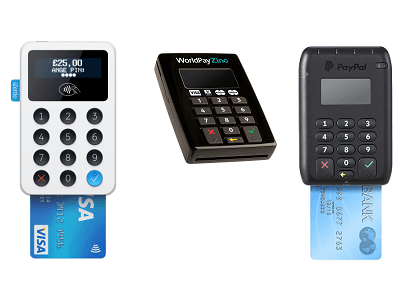
1) Turn the Zettle terminal on
Hold down the "on" button for a couple of seconds and wait for the screen to turn on.
2) Activate Bluetooth on the card reader and iOS device
Press and hold the blue tick button on the device for 5 seconds until it beeps and you see the Bluetooth icon on on the Zettle display. Go to settings on your device, turn on Bluetooth and wait until "iZettle ###" shows up on the list. Select it to begin to connect.
3) Confirm connection
Confirm the connection on the card reader by pressing the blue "tick" button. Wait a few seconds and select Pair on the pop up on your iOS device.
4) Open the TicketCo Admin app
5) Activate Zettle sales
Open the TicketCo Admin app, go to Settings and select Payment terminal settings.
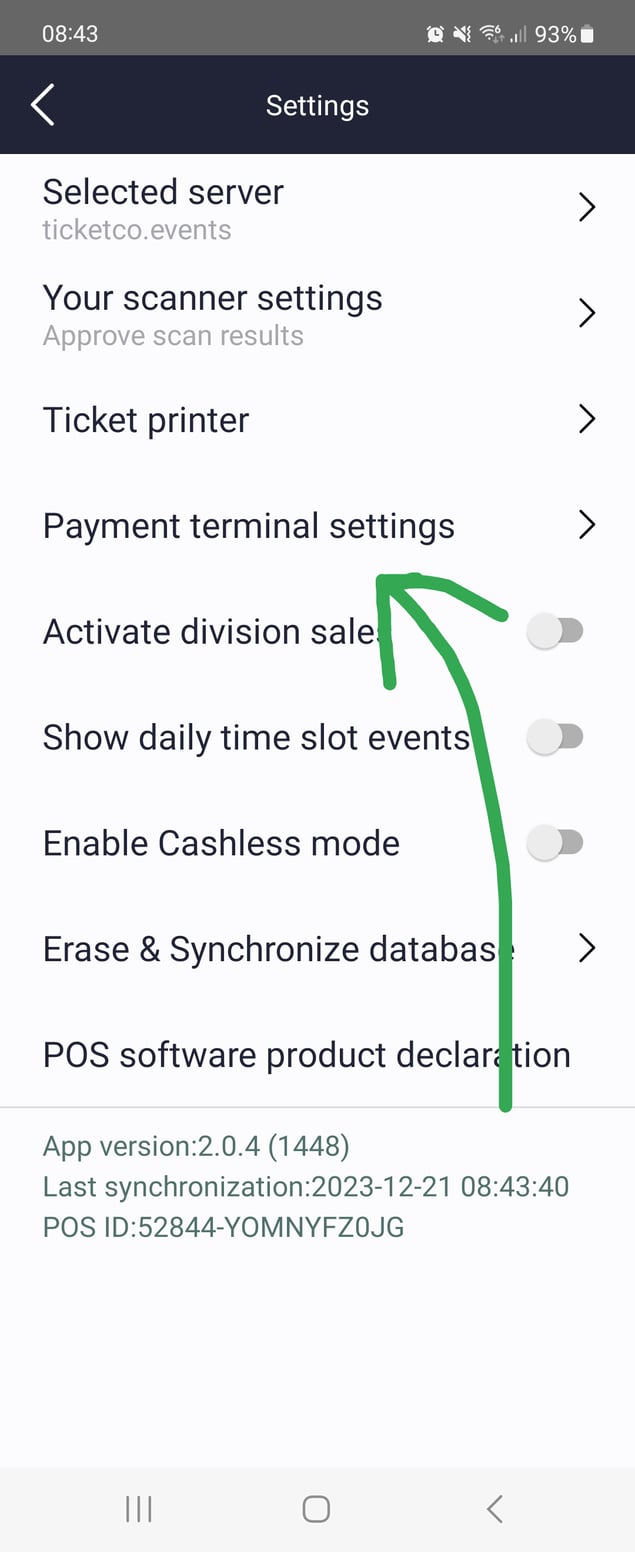
Note down the password and username listed under iZettle settings. Your username will be in the format of izettle+xxxx@ticketco.net (or similar), and your password will contain a mixture of letters and numbers.
It is very important that you log in with these credentials, so note them down. If you enter incorrect details more than 3 times you will be locked out, and TicketCo will need to provide you with a new password.
Tap iZettle settings, enter the details you noted down and tap Log in. Once connected your card reader should show “Insert card”. Navigate back to the TicketCo App main screen to start selling! More help on how to sell is found here.
Troubleshooting
If the display on the reader does not show "Insert card" while the TicketCo app is open and you've followed the steps above, it usually means that there is something wrong with the Bluetooth connection. Try the following:
- Make sure the iOS device and Zettle readers are paired following the steps above. If you have multiple devices and Zettle readers, they can sometimes get mixed up!
- Restart the the Zettle reader.
- Force-close the TicketCo app by double-pressing the home key and swiping the app out of the screen.
- Open the TicketCo app and try again.
If the display on the Zettle reader says "READER DAMAGED" please contact your supplier and request a replacement. This error code means that the reader is permanently damaged and can not be fixed.
If you are not able to activate Zettle sales following the steps above there might be something wrong with the username and password you are using. Contact TicketCo support to resolve this issue.