.png?width=300&height=76&name=logo%20H%20teal%20(1).png)
Summary
Offers let you hold seats for your existing fans and send each of them a personal link to renew and pay. Use them for season ticket renewals and cup reservations, so loyal fans keep their seats and you secure revenue early.
In short, you set up the season ticket, choose who gets an offer, check the seat plan, write the message and deploy. Fans get an email and SMS, log in, and pay in a few clicks with their details already filled in.
Before you startOffers is a premium feature. To get access, contact support.
Create the season ticket you want to offerSet up the new season ticket (or cup event) as normal. See the season ticket set-up guide for each step.
Check that every section you carry over has a price zone on the new season ticket. A missing price zone is the most common reason seats get skipped later.
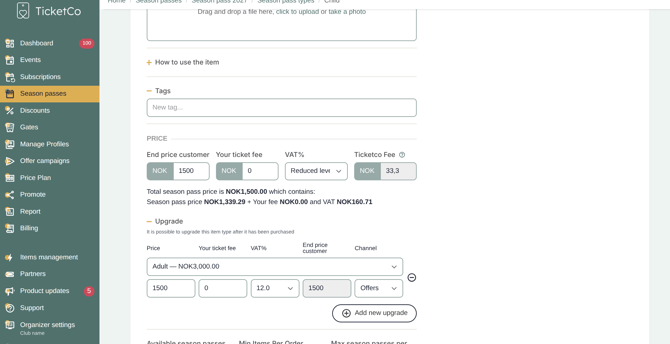
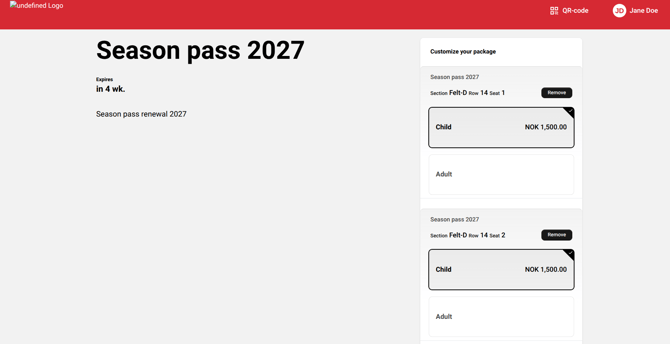
Optional: add upgradesUpgrades let fans move to a different ticket type when they accept their offer, for example from child to student or adult as their children grow up.
- Go to Season passes, open your season ticket and choose Season pass types.
- Open the ticket type fans upgrade from, for example Child.
- Under Upgrade, choose the ticket type they can move to, set the price and VAT.
- Set Channel to Offers so the upgrade shows on the fan's offer page.
- Click Add new upgrade to add more options.
Step 1: Open Offer campaigns
Go to Offer campaigns in the menu. The overview shows every offer and its stage: Draft, Active, Future, Cancelled or Completed.
For each offer you can see the audience size, how many emails and SMS went out, and the share of offers redeemed. For the full picture, click the three dots and download the report.
Step 2: Create a new offer and add the detailsClick Create new offer and fill in:
- Name: what fans see, for example "Season pass 2027".
- Target event: the season ticket or event you are offering.
- Go live and expiry: when the offer opens and when it closes.
Important: when an offer expires, TicketCo releases every seat it still holds. Give fans enough time to act.
Tip: some groups need more time than others. Sponsors, for example, often renew through their agreement later in the season. Set up two offers: one for regular fans with a normal expiry, and one for sponsors with a later expiry, so their seats stay held for longer. Exclude the sponsors from the first offer in Recipients.
Step 3: Audience and mappingChoose who gets the offer by picking a previous event or season ticket, for example "Season pass 2026".
TicketCo then lists each ticket type from that audience. For each one, choose the target ticket type fans will be offered, and what should happen:
|
Option |
What happens |
|---|---|
|
Skip |
These fans are left out of the offer. |
|
Reserve |
Seats are held, but no offer goes out. |
|
Reserve & Send |
Seats are held and fans get the offer. |
Step 4: Check the seat plan
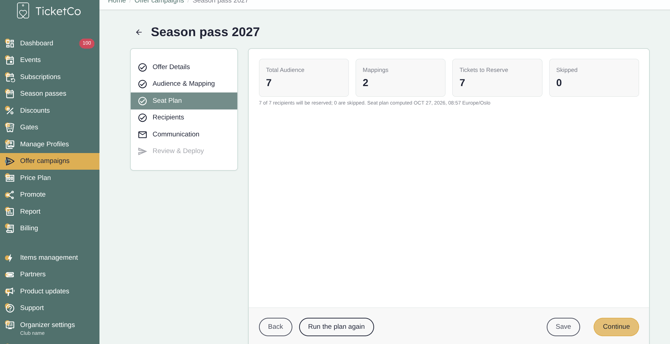
The seat plan shows your total audience, the number of mappings, the tickets to reserve and any skipped tickets.
If any tickets are skipped, the seat plan lists them with the reason. Click Review the mapping to go back and check your ticket type choices.
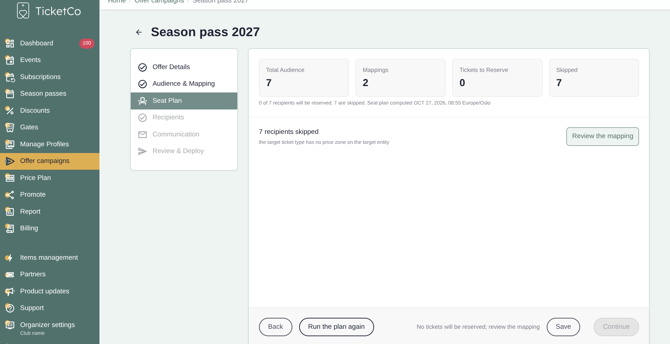
Tickets are usually skipped for one of these reasons:
- The seat is already taken on the target event.
- The section has no price zone on the target event.
- The fan has no email address or phone number.
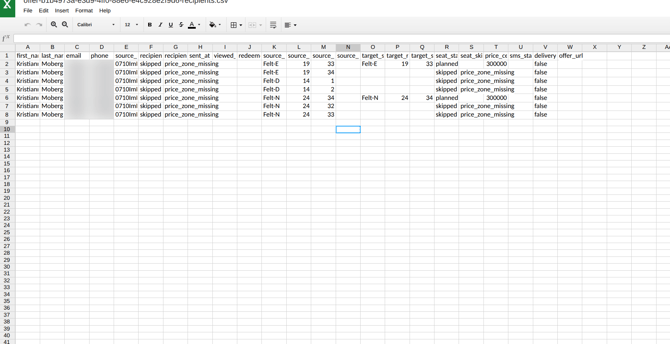
To see which orders are affected, go back to the Offer campaigns overview and download the CSV file. Each row shows the fan, their old seat, the planned new seat and the reason for any skip. Fix the issues on the target event, then click Run the plan again. Repeat until the skipped count looks right.
When the issues are fixed, the seat plan shows every ticket ready to reserve and you can continue.
Exclude anyone who should not get this offer. For example, a sponsor may hold an adult ticket type but have their seats renewed through their agreement instead.
Step 6: CommunicationTiming: turn on Schedule send-out and choose the date and time the offer goes out (Europe/Oslo time). With this turned off, offers go out as soon as you deploy.
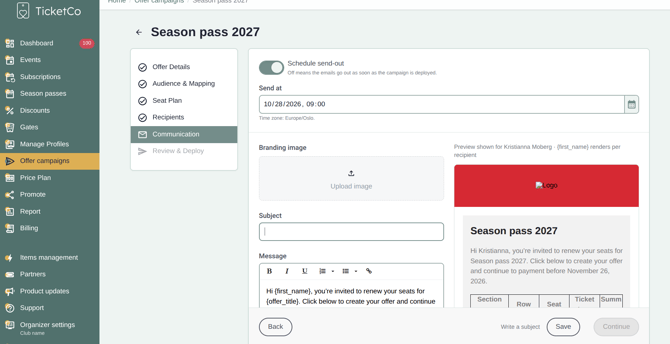
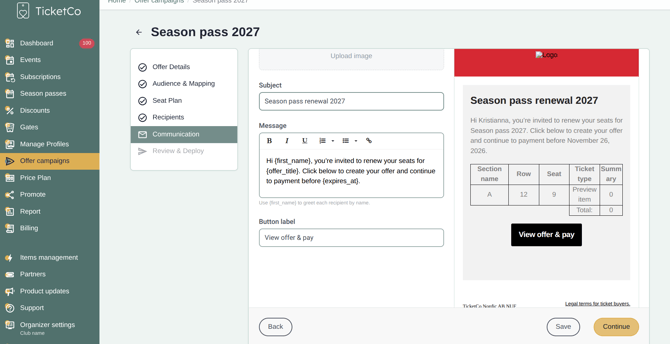
Email: add a branding image, a subject line and your message. The email uses your account branding, and the preview on the right shows how it will look. You need a subject line before you can continue.
You can personalise the message with these fields:
- {first_name} greets each fan by name.
- {offer_title} adds the offer name.
- {expires_at} adds the deadline.
You can also change the button label, for example "View offer & pay".
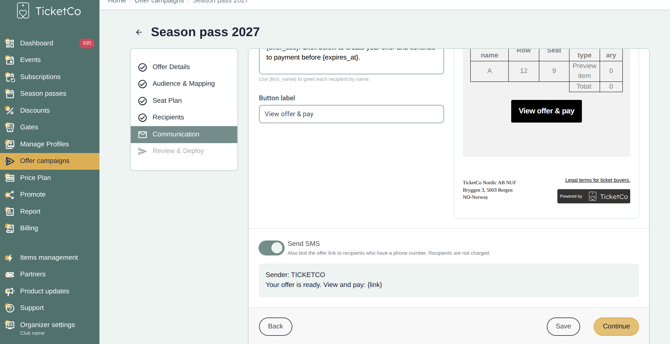
SMS: turn on Send SMS to text the offer link to every fan with a phone number. Fans are not charged for the SMS. This is a premium feature, contact support if interested
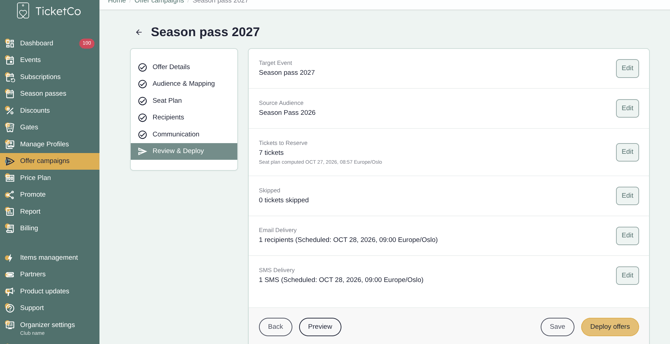
Check the summary: target event, audience, tickets to reserve, skipped tickets, and the email and SMS schedule. Click Preview to see what fans will get. When everything looks right, click Deploy offers.
TicketCo then reserves the seats. With a large audience, this can take some time.
After you deployFind offers in Admin salesEvery offer appears in Admin sales on the target season ticket, listed as "Offer: Season pass 2027" (or your offer name) with the fan's name, email and number of items.
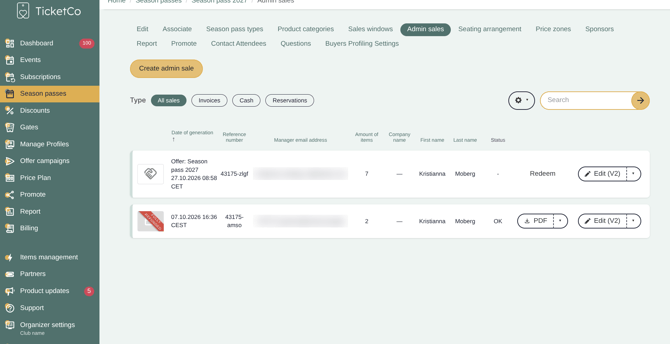
To add, remove or update items, use Edit in Admin sales as normal. The fan's offer updates to match.
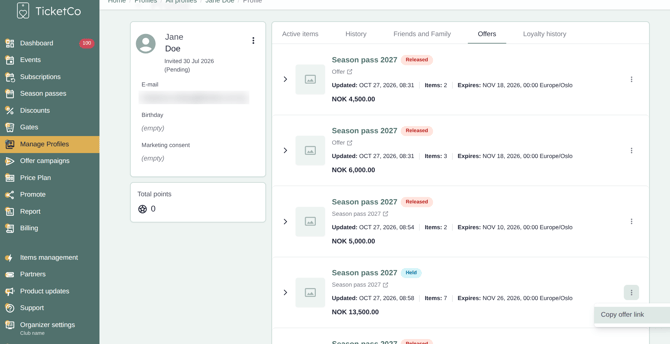
Send a fan their link againGo to Manage Profiles, open the fan's profile and choose the Offers tab. Here you can see each offer, its status (Held or Released), the number of items, the expiry date and the total. Click the three dots and choose Copy offer link to send it to the fan.
Fans move from message to payment in five steps, with their seats held the whole time.
1. They get an email and SMSThe message includes your text, the seats held for them and a link to view and accept the offer.
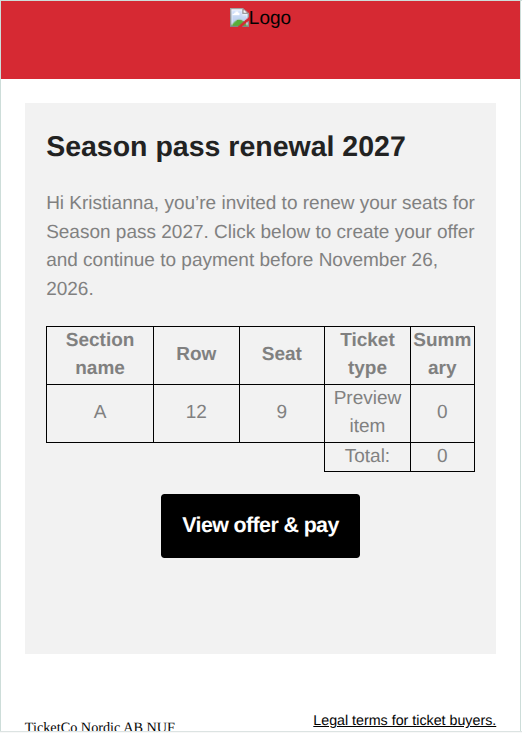
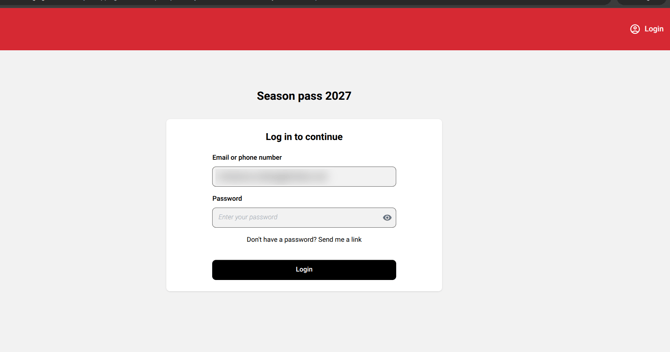
Fans with an account enter their password, unless they are already logged in. Their email address is already filled in.
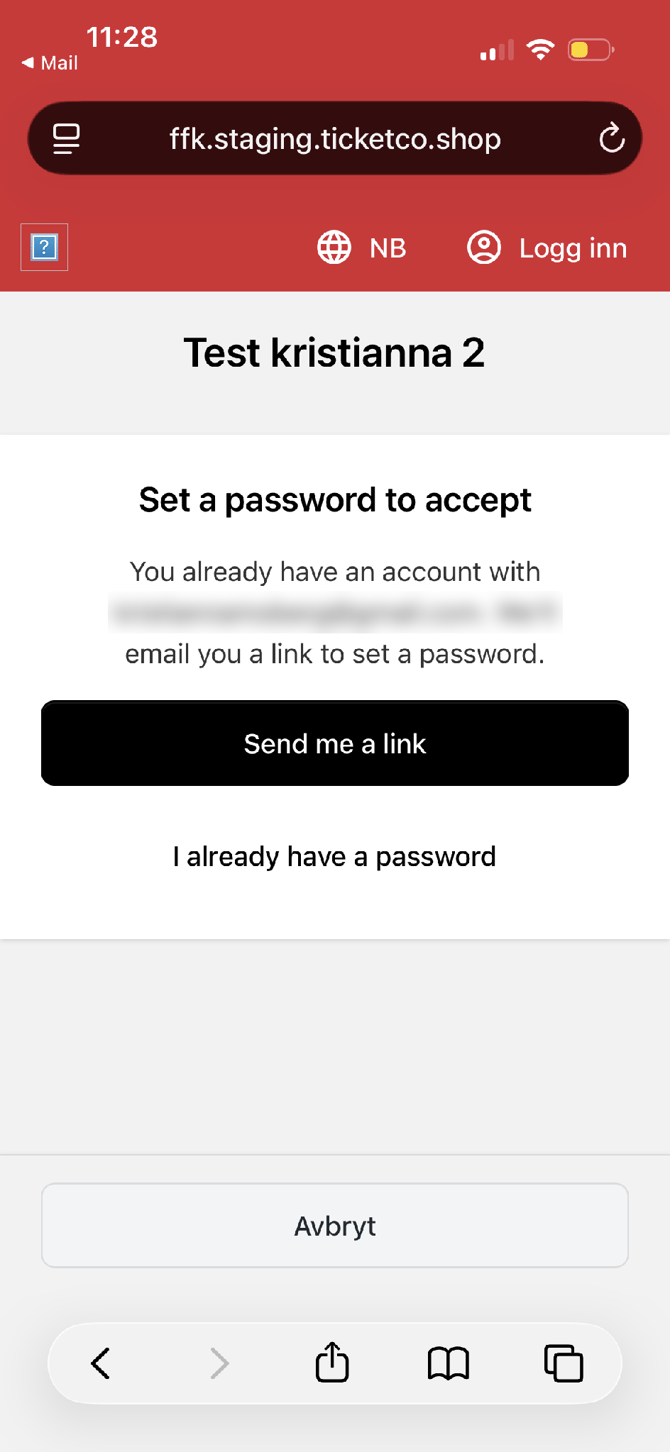
Fans without an account get one when you send the offer. To set their password, they click Send me a link on the login page and follow the link in their inbox.
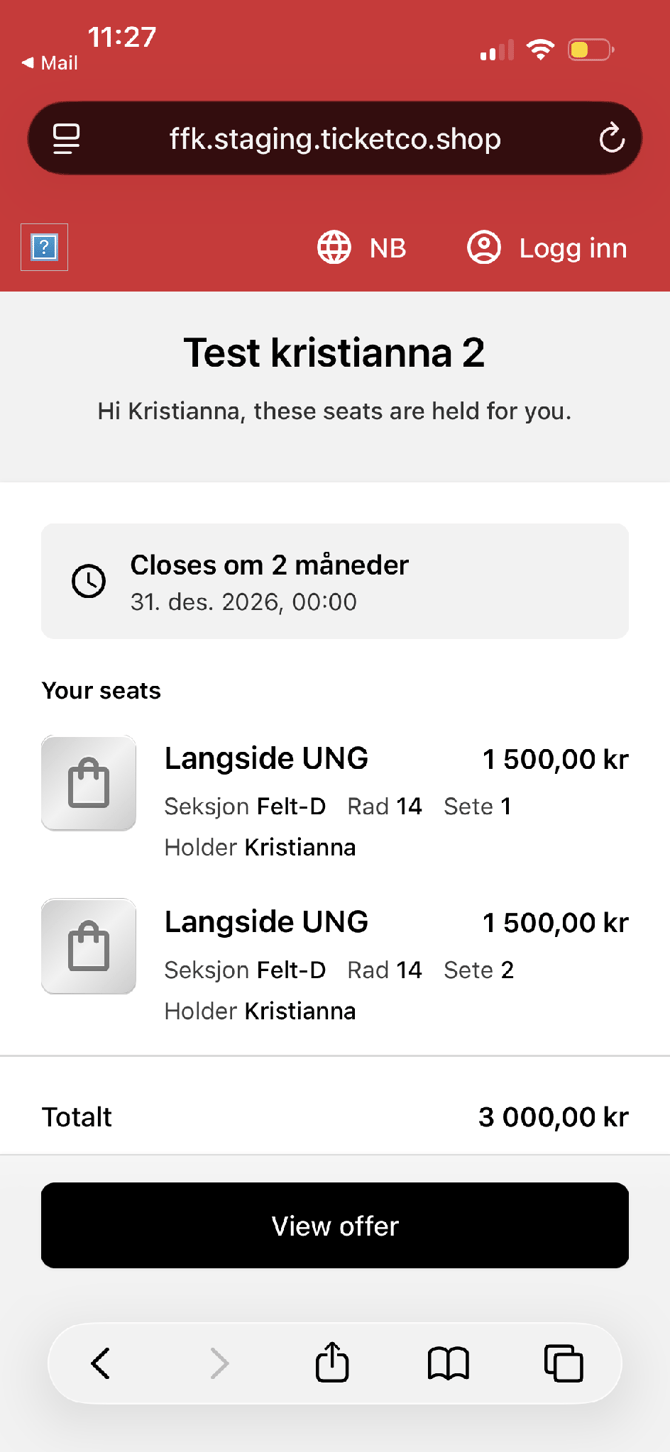
A page lists every seat held for them and the deadline.
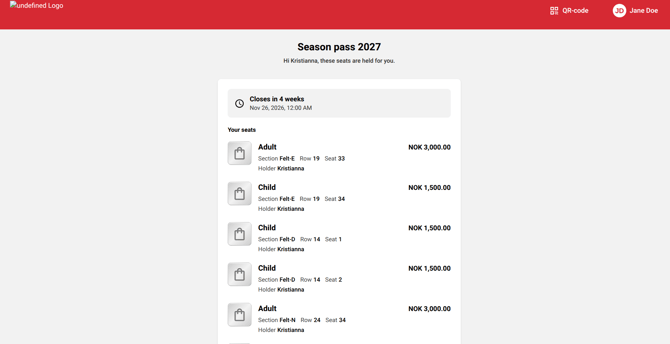
On the summary page, they can remove seats from their basket or choose any upgrades you set up.
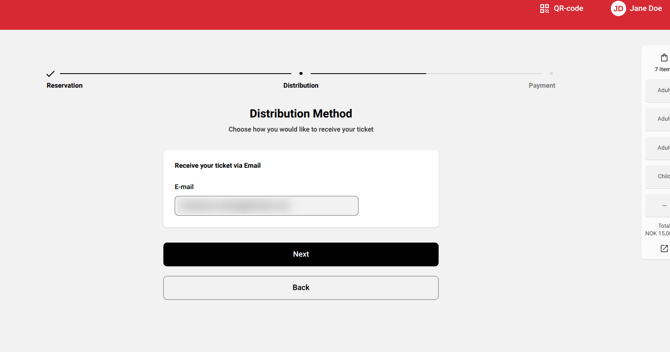
First, they confirm the email address their tickets go to.
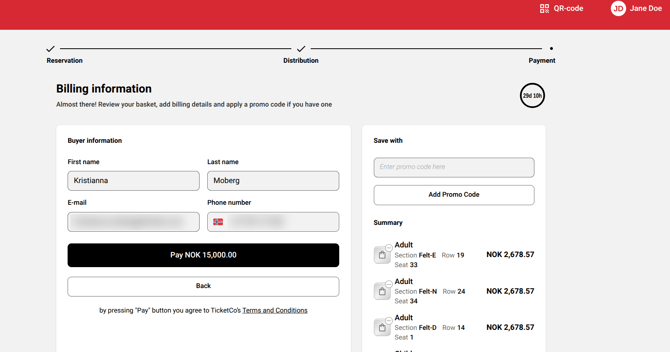
Then they check their basket and pay. Name, email and phone number are already filled in, and they can add a promo code if they have one.
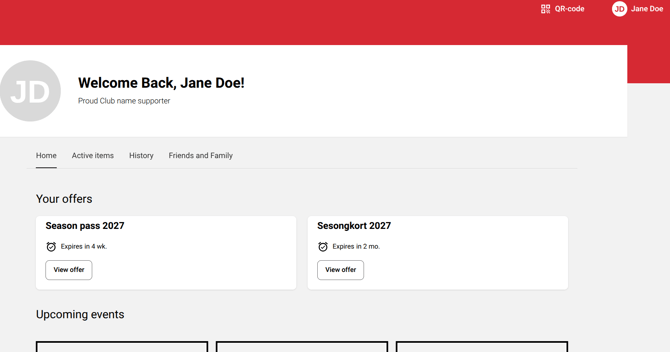
Every open offer sits under Your offers at the top of their fan account, with the time left and a View offer button. The link also stays in their email and SMS.
On a phone, fans see the same page and tap View offer to continue:
Fans who have not set a password yet are asked to set one before they accept. They tap Send me a link, or I already have a password to log in as normal:
|
Issue |
How to fix it |
|---|---|
|
Seat already taken on the target event |
Free the seat on the target event or move the fan, then click Run the plan again. |
|
Price zone missing |
Add a price zone for that section on the target event, then run the plan again. |
|
Email or phone number missing |
Add the contact details to the fan's profile, then run the plan again. |
|
A fan should not get the offer |
Exclude them in Recipients before you deploy. |
|
A fan wants to change their order |
Edit the order in Admin sales with Edit. |
|
A fan cannot find their link |
Copy it from the Offers tab on their profile. |
|
A fan cannot log in |
Ask them to click Send me a link on the login page to set a password. |