.png?width=300&height=76&name=logo%20H%20teal%20(1).png)
Your Webshop
How to use the webshop
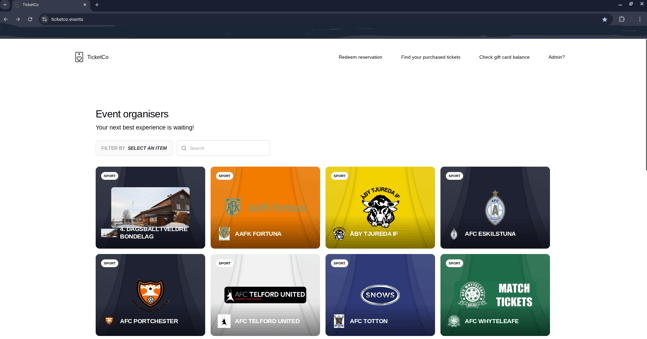
TicketCo’s Webshop feature allows you to create a custom landing page for your customers on the Ticketco main event page before they reach your event page. This is a great way to showcase your branding, highlight products, and provide a more engaging experience for your audience.
What the Webshop Does
-
Branded landing page: The webshop automatically uses your existing TicketCo branding so your page feels professional from the start.
-
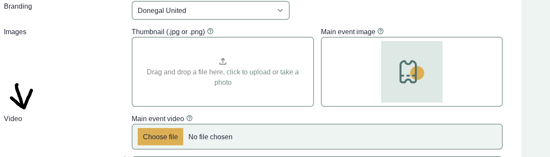
Custom content: You can add a video in the event section, giving your customers a more dynamic introduction to your events.
-
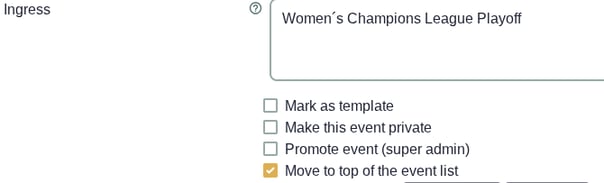
Event ordering: By default, events are shown based on date. If you want a particular event to appear at the top of the list, you can enable the “Move to top of the event list” option for that event.
Event-Level Tagging for Targeted Marketing
This is a tagging feature that makes it easier than ever to guide your Ticket Buyers to a pre-defined landing page tailored for specific events. This is a game-changer for targeted marketing campaigns, helping you highlight exactly the events or experiences you want your audience to see.
Why Use Tags?
Event-level tags are perfect for campaigns where you want to focus your audience’s attention, such as:
-
Women’s games only – Showcase all upcoming women’s matches in a single place.
-
Men’s games only – Highlight men’s events for a dedicated fan segment.
-
VIP or premium opportunities – Promote VIP packages, sponsor access, or corporate experiences with a single focus.
…and many more possibilities depending on your marketing needs.
Important Note
This feature only works with the new webshop. It will not function on the standard webshop setup.
How Event Tagging Works
Tagging an event is simple and flexible:
-
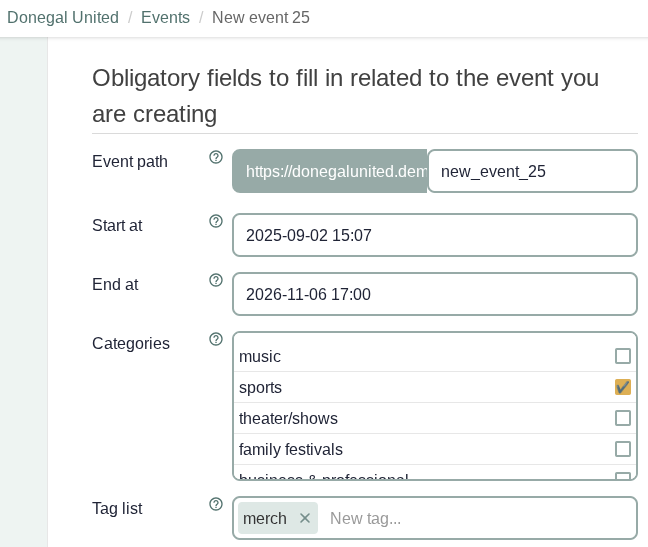
The tag is set on event level
-
Start tagging your event(s) – You can tag one or multiple events.
-
Choose your tag(s) – If tagging multiple events, use the same tag or different tags depending on your campaign goals.
-
Add the tag to your landing page URL – Place the tag at the end of the URL using the format: ?tag=<tag>

If you have multiple tags, use: ?tag=<tag>&tag=<tag>
⚠️ Note: There should be no spaces in the URL.
Example
Suppose you want to focus a marketing initiative on a specific upcoming game:
-
Ordinary landing page URL:
https://clubname.ticketco.shop/ -
Tagged URL for the merch tickets
https://clubname.ticketco.shop/?tag=merch
When TBs click on this tagged URL, they are taken directly to the event(s) highlighted by the tag
Benefits at a Glance
-
Streamlined access to specific events
-
Greater control over marketing focus
-
Personalised experiences for different audience segments
How to Get Started
-
Request activation: The webshop feature is not enabled by default. To turn it on, contact TicketCo Support.
-
Update Branding: Update your personal branding if you would like your webshop to look more appealing to your customers
The TicketCo webshop is a simple yet powerful way to make your events stand out, engage your customers, and drive sales—all before they even reach your event page.